Introduction to Darfix (3.x)#
darfix is a Python library for the analysis of dark-field microscopy data. darfix is to be used as a workflow, together with a graphical user interface based on Orange3.
The aim of this tutorial is to guide you into correctly executing darfix into a correct analysis of your images.
This tutorial will show how to use the 3 main darfix parts:
Load the data and select the different motors (dimensions). Select a transformation technique (RSM, magnification), if needed.
Pre-analysis of the images by applying several operations like region of interest, noise removal and shift correction.
- Apply DFXM analysis to the images. The DFXM techniques currently in darfix are
Rocking curve imaging: Fits the data along the z-dimension (pixel by pixel) according to a Gaussian distribution. After computation, the maps of the fit parameters will be shown. The fitted data is saved on disk in HDF5 format.
Grain plot: Several maps are plotted which can be exported into a single file: COM, FWHM, skewness, kurtosis (for every dimension). There is also mosaicity and orientation distribution maps in case of 2D datasets.
Blind source separation: An experimental technique that uses different blind source separation techniques to find grains along the dataset, tests with different datasets have shown good results with techniques like NMF, NNICA, and NMF+NNICA.
Pre-requisites#
The data format should either HDF5 or EDF.
Warning
EDF is a legacy format and will no longer be supported natively starting from Darfix 4.0.
However, it is possible to convert EDF to HDF5 to load the data in Darfix.
- Motor information should be contained in metadata.
For HDF5: a group should contain all positioners datasets.
for EDF: headers should contain motors_mne information.
The data should be a stack of images (dimensions: N_frames x W x H).
Installing darfix#
At ESRF#
darfix is already installed on the SLURM cluster. To run it, follow these steps:
Connect to the cluster
ssh -X cluster-access
Request an interactive job on a node with appropriate resources
salloc -p interactive –x11 srun –pty bash
Load the darfix module
module load darfix
Launch darfix
darfix
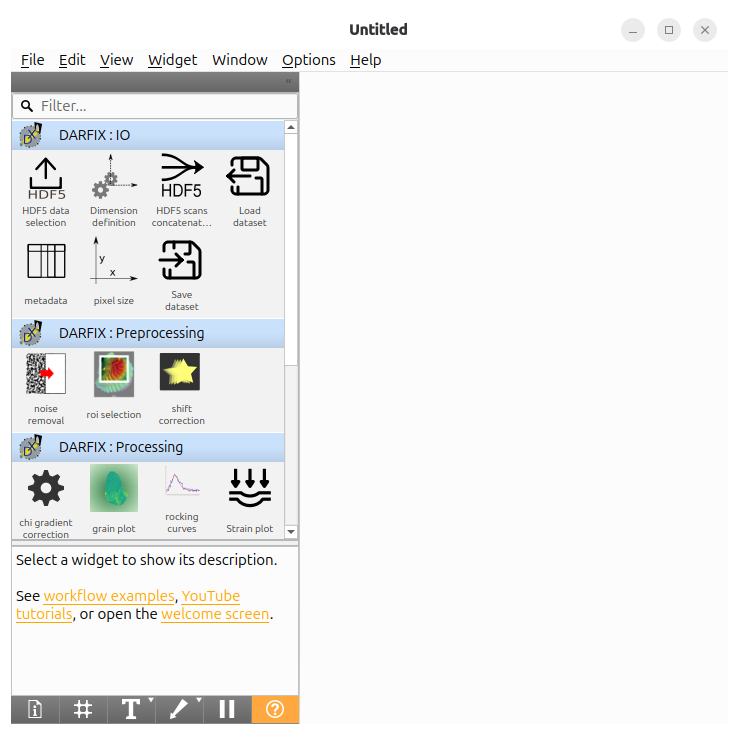
The following window should then appear:
Outside ESRF#
Install darfix according to the instructions in Installation
Then, you can launch darfix by running
darfix
and get the same window as above.
Workflow creation#
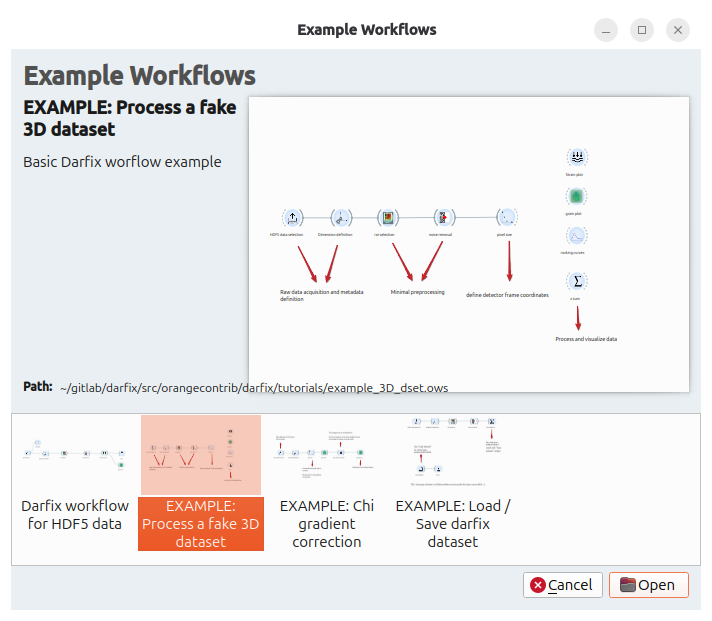
To get a workflow quickly, you can start from one of the workflow examples.
For this tutorial, we will use the workflow Tutorial workflow for HDF5 Data
Info
If you wish, you can also build your own workflow by clicking on any widget you want from the left panel.
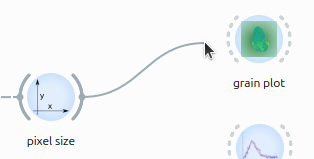
Drag your mouse from a widget output to another widget input to create a link.
Data selection for a HDF5 dataset#
HDF5 data selection allows to select the HDF5 file containing our frames and the scan to be studied. For this, click on Browse button in the File selection row.
In the next screenshot, a local file called ‘example.h5’ was selected.
Then, you can select a scan via the Scan number combo box (9.1). By doing so, the next fields will be filled automatically by guessing the positioners and detector paths. If those do not look right, you can still edit them manually.
Working directory is the directory where processed data are saved by other darfix tasks. You can define it with the corresponding field in this form.
Hint
If the raw data is stored according to the ESRF data policy, the working directory will be set by default to the corresponding PROCESSED_DATA folder.
Example:
If the raw data is stored at
/data/visitor/ma1234/id00/20250509/RAW_DATA/sample/sample_dset/sample_dset.h5The default analysis folder will be
/data/visitor/ma1234/id00/20250509/PROCESSED_DATA
Else, the working directory will be the directory of the input file
Dimension definition#
Dimension definition is needed to select which motors are moving during the scan. This information is needed later in the workflow.
Hint
If the data was acquired with fscan2d, darfix will be able to retrieve all dimensions just by reading the metadata in the HDF5 input file so that no further action is needed:
For other scans, you will have to click on Find dimensions to trigger a simple detection algorithm. The detected dimensions will be displayed on the table like below
Note that this algorithm may fail to detect the right amount of steps for certain motors. The tooltip at the bottom should help you to find out what is wrong.
In this case, you can either change the parameters manually to the right value or decrease the exponent of the tolerance value (hence, increasing it) and click on Find dimensions again.
Region of interest#
Most of the time, the sample signal appears only in part of the field of view. In this case, it is best to crop the images to a region of interest, containing the sample signal.
This will make both the analysis faster (less data to treat), and help you to see closer the different features of the sample.
The region of interest will be defined by the red rectangle that appears on the view. You can move, reshape this rectangle, and click Apply to see the new region.
If you are satisfied with the result, click the now enabled OK button to go to the next step.
Else, click Reset to start over.
Noise Removal#
Noise removal allows you to apply several operations on the images to clean the dataset.
The different operations are subtracting background, removing hot pixels, filtering data below and above a certain threshold and applying mask.
Each operation can be applied successively by clicking on the corresponding Compute button. After an operation is applied, it will be added to the history below. All operations can be cleared by clicking on Reset.
Once you have completed noise removal you can press OK and go to the next step
Tip
Consider the data! If the data/Background Intensity relation is big, you can considerably increase your threshold, if the difference between data and background is not so big, you might be losing information by removing too much.
Shift detection and correction#
The consecutive images might show a displacement of the object of study that does not correspond to reality. This displacement is here identified as shift and can be detected.
By clicking Find shift, a shift value can be detected and applied to the dataset.
This shift value can be edited by hand and visualized by clicking Correct for further refinement.
Once the shift looks good, click OK to move to the next step.
ZSum#
To check our whole scans in a single frame and check the dataset is clean and ready for next steps, this is a good practice to use ZSum.
ZSum sum all images of the dataset (or along a given dimension).
Tip
In the example, we see that some noise is remaining. Maybe we need apply a threshold or a hot pixel removal.
Grain Plot#
Once OK was clicked on the previous step, computation of statistical measures will be launched in this widget.
Once this is done (it may take a while, you can see the progress on the terminal), several maps will be shown:
Center of mass (COM): Shows the map of COM for every motor. The center of mass looks at the intensity as a function of a motor position, using the intensity values of the images as a statistical weight
Full width half maximum (FWHM): Same as COM but with the standard deviation
Skewness, Kurtosis: third and fourth-order computed standardized moments
Mosaicity (only for datasets with more than two motors): HSV image that has the COM of the first motor as hue and the COM of the second motor as saturation.
Orientation distribution (only for datasets with more than two motors): colormap for the mosaicity and that includes the contour map of the orientation distribution.
Rocking curve imaging#
The rocking curves widget allows you to see a curve of the intensity of each pixel along the dataset. When clicking at any pixel on the plot on the top left plot, two curves will show on the top right plot, The blue curve is the rocking curve of the pixels intensity, and the red curve shows the fit along a Gaussian function.
If you are working with multi-motor datasets, you will see that the rocking curve has many peaks, which results in a wrong fit curve. This is because there is a peak for each motor value. In such cases, you have to click on Filter by dimension and choose a motor and a value to work with.
Below the plots, there is a button Fit data that will trigger a Gaussian fit for all pixels. The Intensity threshold can be used to fasten the computation by omitting pixels whose curve has no intensity variation: the entered number is the maximum intensity variation used to omit that pixel, above that the pixel will be fitted.
With two-motor datasets, the fit will be recursively done along the chosen dimension values.
When the fitting has finished (it may take a while, you can see the progress on the terminal), four maps appear at the bottom: integrated intensity, FWHM, peak position and residuals map. These maps are computed using the fitted data and the residuals map is a measure of how good the fit is.